Why Leaving SSDs Unpowered for Years Can Silently Kill Your Data

Solid-state drives (SSDs) are widely trusted for speed and reliability, but they are not ideal for long-term, unpowered data storage. Unlike hard disk drives (HDDs), SSDs store data as electrical charges inside NAND flash memory cells. When an SSD remains unpowered for extended periods—months or years—those charges slowly degrade, increasing the risk of silent data corruption or complete data loss.

Modern SSDs using TLC and QLC NAND are especially vulnerable. These technologies store multiple bits per cell, which reduces tolerance to charge leakage over time. Drives that have already experienced wear from regular use degrade even faster when left inactive. In practical terms, an SSD stored in a drawer for one or two years may lose data without showing immediate errors or warnings.

Environmental factors also play a major role. Higher temperatures accelerate charge loss, and SSDs that were heavily written to before storage are more susceptible to degradation. While enterprise systems often mitigate this by periodically refreshing stored data, most home users and small businesses assume SSDs are safe as long-term archival storage, which is a risky misconception.

This does not mean SSDs are unreliable. They are excellent for active workloads, operating systems, applications, and fast-access storage. However, for cold storage and long-term archiving, traditional hard drives, optical media, or managed cloud cold storage solutions may provide better long-term data retention when used correctly.

Best practice is redundancy and maintenance.
Always back up important data to multiple storage media, and avoid keeping all copies on the same PC or NAS. Maintain at least one physically separate backup. If you must store data on an SSD, power it on every few months, perform a full read or verification pass, and validate file checksums. SMART monitoring tools like CrystalDiskInfo can help detect early warning signs before data loss becomes permanent.


A. Comparison Tables

Table 1 — SSD vs HDD vs Cloud Storage (Long-Term Archival)

FeatureSSD (Unpowered)HDD (Magnetic)Cloud Storage
Long-term data retention❌ Weak (charge leakage)✅ Strong (magnetic)✅ Very strong (managed redundancy)
Needs periodic power✅ Yes (every 2–6 months)⚠️ Recommended (once per year)❌ No
Risk of silent data corruption⚠️ Medium–High⚠️ Low–Medium⚠️ Low
Susceptible to temperature❌ High⚠️ Medium✅ Provider-managed
Mechanical failure❌ None⚠️ Possible❌ None (user-side)
Ideal use caseOS, apps, active projectsCold storage, archivesOff-site backup & archive
Cost per TB⚠️ Medium–High✅ Low⚠️ Ongoing subscription
Offline access✅ Yes✅ Yes❌ Internet required
Best for “set & forget”?❌ No⚠️ Limited✅ Yes

Verdict:
👉 SSDs excel at speed, not long-term cold storage.
👉 HDDs and cloud storage are safer for multi-year archiving.


Table 2 — Storage Media Comparison (Consumer Perspective)

Storage TypeData Retention (Unpowered)ReliabilitySpeedBest Use Case
SSD SATA⚠️ Medium✅ High⚠️ MediumActive storage, backups
SSD NVMe⚠️ Medium–Low✅ High🚀 Very HighOS, performance workloads
USB Flash Drive❌ Low❌ Low–Medium⚠️ MediumTemporary file transfer
microSD Card❌ Very Low❌ Low⚠️ LowCameras, mobile devices
OneDrive / Google Drive✅ Very High✅ Very High⚠️ Internet-dependentOff-site backup, archive

Key takeaway:
⚠️ USB sticks & microSD cards are worse than SSDs for long-term storage.


AMAZON AFFILIATE LINKS


Windows 10 End of Support: 4 Paths Forward After 14-10-2025 including buy AI-PC

Windows 10 End of Support: What Are Your Options After October 2025?

Microsoft has set the official end date for Windows 10 support: October 14, 2025. After that day, no more free security updates or bug fixes will be released. For millions of PCs still running Windows 10, this raises an urgent question: what’s next?

The good news is you have several paths forward. Each has its pros and cons, and the right choice depends on your budget, your hardware, and how long you plan to keep your current setup. Let’s break down the four main options.


1. Do Nothing – Stay on Windows 10 Without Updates

You could technically keep using Windows 10 exactly as it is. But be warned: this comes with serious risks.

  • Your system won’t receive security patches, leaving it increasingly vulnerable to malware, ransomware, and other cyberattacks.
  • Compatibility issues may pile up over time as software vendors move on.
  • Online services, banking apps, or even browsers could eventually refuse to work on outdated, insecure systems.

This is the “bury your head in the sand” approach. It might work for a machine that’s completely offline and used for very specific tasks, but for daily use — especially with internet access — it’s the riskiest option.


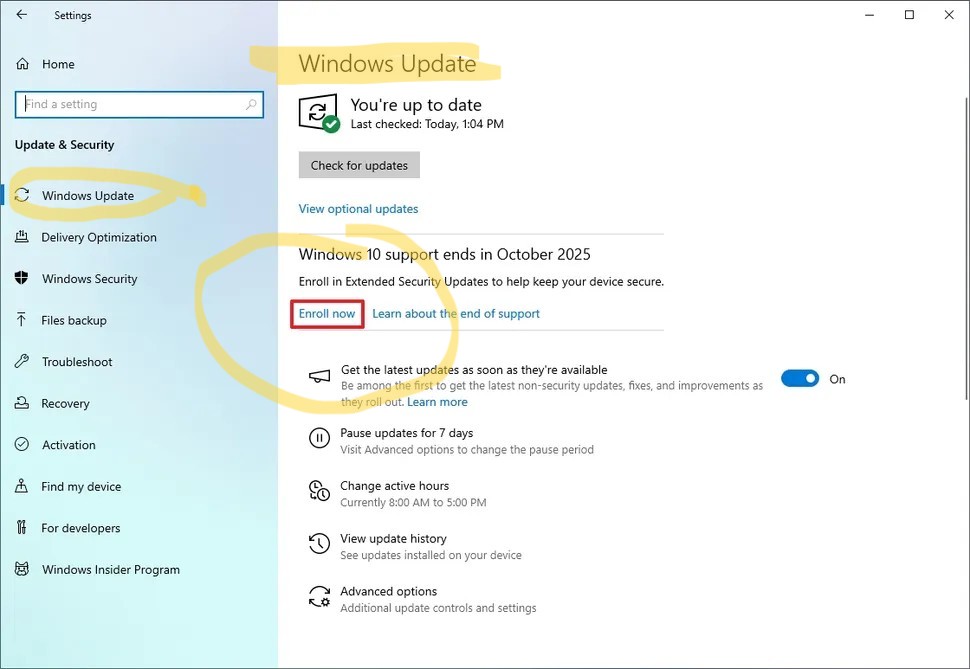
2. Stay on Windows 10 with Extended Security Updates (ESU)

If you’re not ready to jump ship yet, Microsoft is offering Extended Security Updates (ESU) for Windows 10. This allows you to keep receiving critical security patches after the official end-of-support date.

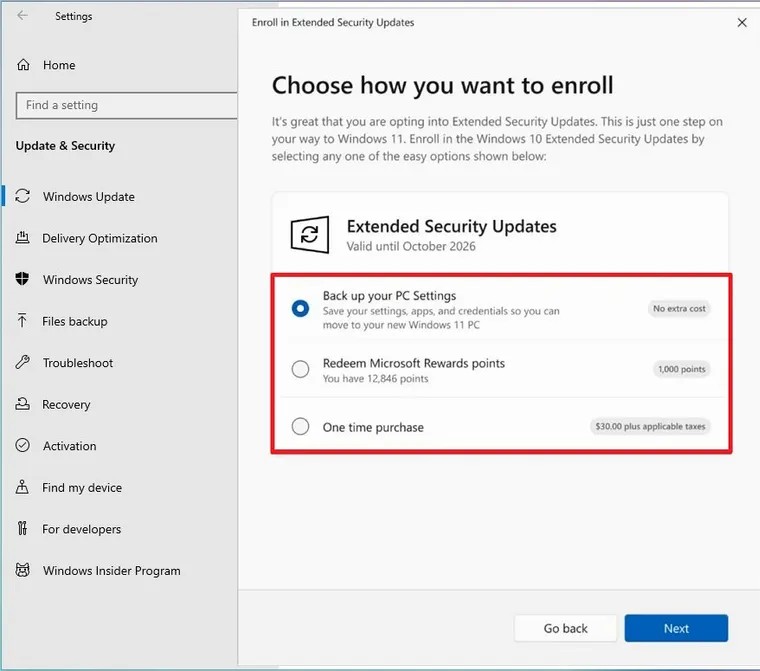
Here’s how you can enroll:

  • Free Option: If you’re backing up your files with OneDrive, you may be eligible for a year of ESU at no extra cost.
  • Rewards Option: Redeem Microsoft Rewards points (1,000 points per device) to extend security updates.
  • Paid Option: Purchase ESU directly for a modest one-time fee (around $30).

ESU gives you more breathing room — up to a year of continued protection — but it’s not permanent. Eventually, updates will stop, so treat this as a temporary solution while you prepare for the future.

>>>>


3. Buy a New PC – AI PC vs. Non-AI PC

For many people, the end of Windows 10 support will also be a chance to refresh hardware. If your system is more than five years old, buying a new machine could be the smoothest upgrade path.

Here’s the key decision today: AI PC or non-AI PC?

  • AI PC: These new devices include specialized AI hardware (like NPUs – Neural Processing Units). They’re designed to accelerate on-device AI tasks such as voice recognition, video editing, productivity tools, and next-gen Windows features. If you want to stay future-proof and plan on keeping your computer for several years, an AI PC is the smarter investment.
  • Non-AI PC: Traditional PCs without NPUs are still powerful and may be cheaper. If you mainly use your computer for browsing, office work, and standard apps, you may not need AI hardware — at least not yet.

Think of this as a fork in the road: AI PCs are where the industry is heading, but whether you need one today depends on your workload and budget.


4. Upgrade Your Current PC to Windows 11

If your PC meets the requirements for Windows 11, upgrading may be the easiest and cheapest option. Windows 11 will be supported until at least 2031, giving you years of updates and access to new features.

Pros:

  • No new hardware needed if your current PC is compatible.
  • Continued security patches and support for the long term.
  • Access to modern Windows features and optimizations.

Cons:

  • Not all older PCs meet the official hardware requirements.
  • Some people may find the new interface and layout take getting used to.

If your PC is already fairly recent, this is likely the most straightforward path.


Final Thoughts

The end of Windows 10 support isn’t the end of the world — but it does mean making a decision.

  • If you’re running an old machine for offline tasks, you might risk staying put.
  • If you need a little more time, ESU buys you a temporary extension.
  • If you’re due for new hardware, now’s the perfect time to consider whether an AI-powered PC makes sense.
  • And if your current machine is eligible, upgrading to Windows 11 is the simplest way to keep receiving support well into the next decade.

The key is not to wait until October 2025. Start planning now, and you’ll avoid a rushed, stressful transition later.


Disclosure: As an Amazon Associate, I earn from qualifying purchases, at no extra cost to you.

Note: Some Amazon links on this page may redirect you to your local Amazon store automatically, depending on your location. This ensures you see the correct products, pricing, and shipping options for your region.


💻 AI-Powered PCs (Future-Proof Choice)

🖥️ Windows 11 Ready (Non-AI PCs)

💰 Budget-Friendly Windows 11 PCs


Websites for sale — without domain only web files: HTML, CSS, JS, PHP, images … etc.

====

Solar Panels – Photovoltaic installation

http://92.205.59.115/~photovoltaicsys/

====

Polis Town Property Management & Cleaning

http://92.205.59.115/~polispropertyman

====

Jenny’s Private English Institute

http://92.205.59.115/~jennysprivate/

====