Upgrade an Unsupported Windows 11 25H2 PC to Windows 11 26H2 Using KB5121794
Leonidassavvides.com/blog/2026/10/unsupported-pc-upgrade-to-26h2-in-6-minutes-only/
This Article is for unsupported Win 11 26H2 PCs. For supported PCs, you update via Windows Update like you normally do; you will be prompted (See w11-26H2.jpg here).
Can an older PC already running Windows 11 25H2 be upgraded to Windows 11 26H2 even though its processor is not officially supported by Windows 11?
In this guide and accompanying video (on YouTube; check here), I demonstrate the procedure on an older HP Compaq desktop with an Intel Core i5-2400 processor, already running Windows 11 25H2.
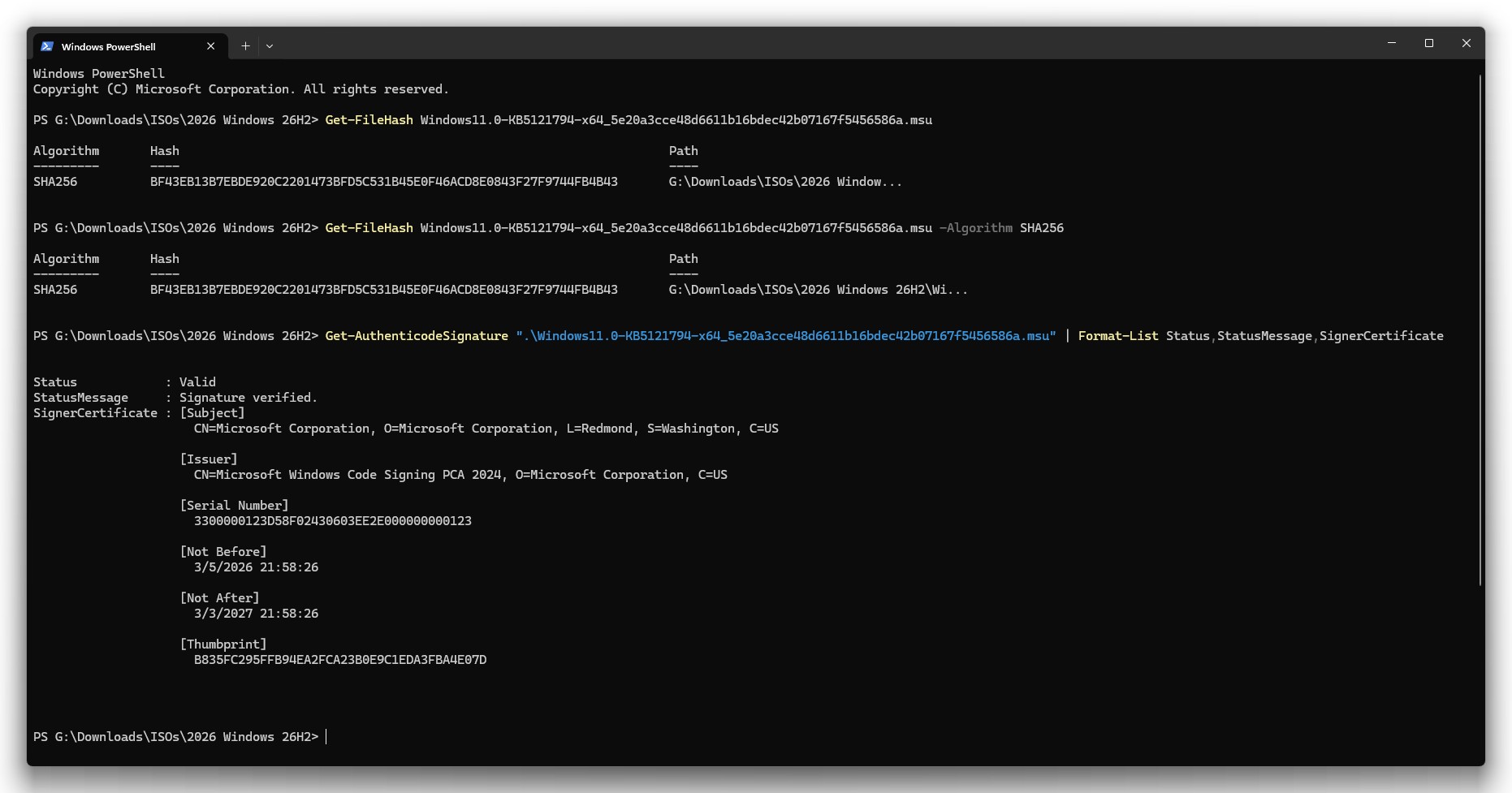
The upgrade uses KB5121794, Microsoft’s Windows 11 26H2 Enablement Package. The. xyz.msu package used in my test is hosted on Microsoft’s download infrastructure and carries a valid Microsoft digital signature (See these files: cli.txt, cli.jpg).
Educational Purposes Only
This article and accompanying video are provided for educational and testing purposes only.
Installing or upgrading Windows 11 on hardware that does not meet Microsoft’s official Windows 11 requirements remains an unsupported configuration.
Completing this procedure does not make an unsupported processor officially supported by Microsoft.
Results can also vary depending on your PC hardware, drivers, Windows configuration, and installed software.
IMPORTANT: Back Up Your PC Before Taking Any Action
Back up your computer before attempting this upgrade. HIGHLY RECOMMENDED: Create a System Restore Point, as Recovery Points do not survive this tiny but major upgrade.
At minimum, make sure all important documents, photographs, and other personal files exist on another storage device or backup location.
For additional protection, I recommend creating a complete system-image backup before modifying the operating system.
A backup gives you a much stronger recovery option if something unexpected happens during or after the upgrade.
HIGHLY RECOMMENDED: Create a System Restore Point
I also highly recommend creating a new Windows System Restore point immediately before installing the 26H2 Enablement Package.
During my own upgrade from Windows 11 25H2 to Windows 11 26H2, I found that my existing System Restore Points remained available after the upgrade (See RestorePointsRetained.jpg), in other words haven’t lost unlike other upgrades, like I think 23H2 to 24H2.
Using this enablement package, the 25H2 → 26H2 upgrade is relatively small and took only six minutes in my test (YouTube link coming soon), provided that all 25H2 updates are installed beforehand. This is much faster than performing a full Windows installation.
Nevertheless, System Restore is not a replacement for a proper backup. Do both when possible:
- Back up your important files.
- Preferably create a full system-image backup.
- Create a fresh System Restore point.
- Make sure Windows is fully updated.
- Check your current Windows version with winver.
- Only then proceed with the upgrade.
Windows 11 26H2 Enablement Package — KB5121794
Microsoft officially documents KB5121794 as the Feature Update to Windows 11, version 26H2, by Enablement Package.
Windows 11 24H2, 25H2, and 26H2 share a common core operating system. Microsoft describes the enablement package as a small, quick-to-install package that activates the Windows 11 26H2 features.
Microsoft also specifies KB5124010 or a later cumulative update as a prerequisite.
Before continuing, press:
Windows + R
type:
winver
and press Enter.
Confirm that your computer is running an appropriate Windows 11 installation and is fully updated. Specifically, your PC should have: Windows 11 25H2 _ 26200.9550. This is required for the SIX MINUTES UPGRADE to Windows 11 26H2 _ 26300.9550, as done in my case.
Download KB5121794
For an Intel or AMD x64 PC, the package used in this demonstration is:
Windows11.0-KB5121794-x64_5e20a3cce48d6611b16bdec42b07167f5456586a.msu
Direct Microsoft-hosted download:
The file is hosted on Microsoft’s dl.delivery.mp.microsoft.com download infrastructure.
There is an important distinction here: Microsoft’s official KB5121794 support documentation confirms the existence and purpose of the Windows 11 26H2 Enablement Package, but the Microsoft support article does not currently publish this exact xyz.msu filename or direct download URL.
Install Windows 11 26H2
Once you have completed your backups and created a System Restore point, double-click the downloaded xyz.msu file.
Windows Update Standalone Installer will process the package.
Follow the installation prompts and allow the update to complete. Save any open work and restart the computer when Windows requests it.
Because this is an enablement-package transition rather than a traditional full Windows installation, the process can be considerably smaller and faster (6 minutes for me; see YouTube Link), unlike others older, normal major feature upgrades.
Verify Windows 11 26H2 After Restarting from MSU run
After Windows starts again, press:
Windows + R
type:
winver
and press Enter. (see msinfo32.jpg or System-About.jpg)
The About Windows dialog should now identify the operating system as:
Windows 11 Version 26H2 _ 26300.9550
You can additionally verify it through:
Settings → System → About → Windows specifications (see msinfo32.jpg or System-About.jpg)
In the accompanying video, I show the system before the upgrade, installation of the enablement package, restart, and final Windows 11 26H2 _ 26300.9550 verification.
Important: Unsupported Hardware Remains Unsupported
Successfully installing Windows 11 26H2 does not make an older computer officially supported by Microsoft.
For example, the Intel Core i5-2400 used in my HP Compaq test system is an old processor that does not meet Microsoft’s official Windows 11 processor requirements.
The fact that the update package is genuine Microsoft software and installs successfully does NOT change the hardware’s support status – Windows 11 Minimum Requirements.
In other words:
Genuine Microsoft Windows + genuine Microsoft update package does not equal officially supported hardware.
Microsoft warns that Windows 11 installations on devices that do not meet the minimum system requirements are unsupported and may experience compatibility problems.
Therefore, this procedure should be treated as an unsupported Windows configuration and an educational experiment.
Conclusion
In my test, an older HP Compaq PC equipped with an Intel Core i5-2400 (see msinfo32.jpg or System-About.jpg) and already running Windows 11 25H2 _ 26200.9550 was able to transition to Windows 11 26H2 _ 26300.9550 using the KB5121794 Enablement Package in just 6 minutes.
The upgrade was relatively small compared with a traditional Windows feature installation, and my existing System Restore points remained available & intact afterward.
Your results may be different.
Back up your computer, create a fresh System Restore point, verify the package, and understand that unsupported hardware remains unsupported even when genuine Microsoft software installs successfully.
The accompanying YouTube video demonstrates the complete procedure on the actual test PC.
Verify the Microsoft Package Before Installing
As an additional security and authenticity check, I verified the downloaded .msu package using Windows PowerShell. (cli.jpg, cli.txt)
First, I calculated its SHA-256 hash:
Get-FileHash .\Windows11.0-KB5121794-x64_5e20a3cce48d6611b16bdec42b07167f5456586a.msu -Algorithm SHA256
For the package downloaded and used in my test, PowerShell returned:
SHA-256:
BF43EB13B7EBDE920C2201473BFD5C531B45E0F46ACD8E0843F27F9744FB4B43
I then checked the package’s Authenticode digital signature with:
Get-AuthenticodeSignature “.\Windows11.0-KB5121794-x64_5e20a3cce48d6611b16bdec42b07167f5456586a.msu” | Format-List Status,StatusMessage,SignerCertificate
PowerShell reported:
Status: Valid
Status Message: Signature verified.
Signer: Microsoft Corporation
Issuer: Microsoft Windows Code Signing PCA 2024
Certificate Thumbprint: B835FC295FFB94EA2FCA23B0E9C1EDA3FBA4E07D
The most important results are “Status: Valid”, “Signature verified,” and “Microsoft Corporation” as the signer.
This provides additional verification that the package used in my demonstration carries a valid Microsoft digital signature.
At the time of writing, I have not located this exact SHA-256 value published by Microsoft as an official reference checksum. Therefore, the SHA-256 shown above is the hash I independently calculated from the Microsoft-hosted package used for this test; it should not be described as a Microsoft-published checksum.
For readers following this guide, I recommend performing the same signature verification on your own downloaded file before installing it.
Microsoft References
The following official Microsoft documentation provides additional information about Windows 11 26H2, KB5121794, Windows 11 hardware requirements, unsupported hardware, and the PowerShell commands used to verify the downloaded package.
1. KB5121794 — Feature update to Windows 11, version 26H2 by using an enablement package
Microsoft’s official documentation for the Windows 11 26H2 Enablement Package. It explains the shared core between Windows 11 24H2, 25H2, and 26H2, the enablement-package mechanism, prerequisites, and restart requirements.
2. Windows 11 System Requirements
Microsoft’s official minimum hardware requirements for Windows 11, including supported processors, TPM 2.0, Secure Boot capability, RAM, and storage requirements.
https://support.microsoft.com/en-us/windows/experience/compatibility/windows-11-system-requirements
3. Windows 11 on Devices That Don’t Meet Minimum System Requirements
Microsoft’s official explanation of what it means to install Windows 11 on unsupported hardware. Microsoft states that such installations are not recommended, are unsupported, may encounter compatibility problems, and are not guaranteed to receive updates.
4. PowerShell — Get-FileHash
Official Microsoft PowerShell documentation for Get-FileHash, which can be used to calculate a SHA-256 checksum for the downloaded msu package. (cli.jpg, cli.txt)
https://learn.microsoft.com/en-us/powershell/module/microsoft.powershell.utility/get-filehash
5. PowerShell — Get-AuthenticodeSignature
Official Microsoft PowerShell documentation for Get-AuthenticodeSignature, which can be used to inspect and verify the digital signature attached to a downloaded file. (cli.jpg, cli.txt)
Package Used in This Test
KB5121794 — Windows 11 26H2 Enablement Package (x64)
Filename:
Windows11.0-KB5121794-x64_5e20a3cce48d6611b16bdec42b07167f5456586a.msu
Microsoft-hosted download:
SHA-256 calculated from the package used in this test:
BF43EB13B7EBDE920C2201473BFD5C531B45E0F46ACD8E0843F27F9744FB4B43
PowerShell digital-signature verification:
Status: Valid
Status Message: Signature verified
Signer: Microsoft Corporation
Issuer: Microsoft Windows Code Signing PCA 2024
Note: The SHA-256 above was independently calculated from the downloaded package. At the time of writing, I have not located an official Microsoft page publishing this exact SHA-256 as a reference checksum.
(cli.jpg, cli.txt)